OnSet Shop Control — Screenshots
Setup Sheet, Tool Library, SOP, Glossary, & Repository
🔍
Tip: Click any screenshot to enlarge it.
Use the ← → arrows or your keyboard arrow keys to page through all screenshots.
Press Esc to close.
Machining Knowledge System — Powered by AI
The SOP and Glossary modules pair AI capability with real machining experience to build procedures and work instructions that neither could produce alone — the programmer brings intuition and hard-won floor knowledge, AI brings comprehensive recall and tireless documentation, and together they produce something better than either could write alone.
The Glossary doesn’t just define terms — it surfaces their origins, the evolution of techniques, and the lineage of processes that shaped this trade, embedding the history of precision manufacturing into a system built to last. Glossary terms literally build themselves with AI.
OnSet addresses manufacturing’s most persistent language barrier with AI translation that works in real shop context — not word-for-word, but meaning-for-meaning — editable for regional dialect and portable when operations move across the country or across an ocean.
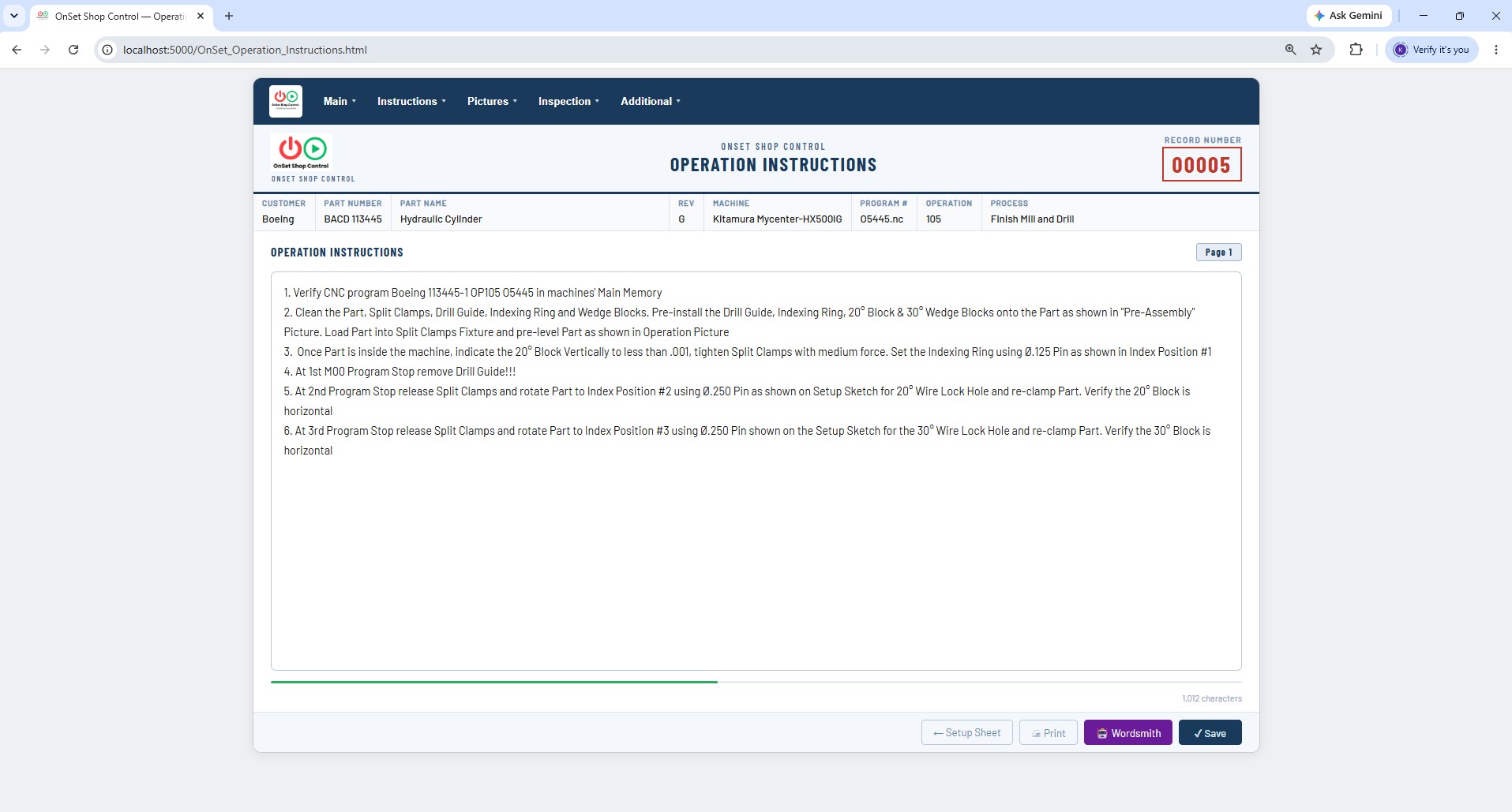
OnSet’s AI Wordsmith takes the shorthand a programmer types into Work Instructions — “face mill top .010 leave for grind” — and refines it into clear, professional, imperative-voice instructions without changing a single technical detail.
Screenshot 01
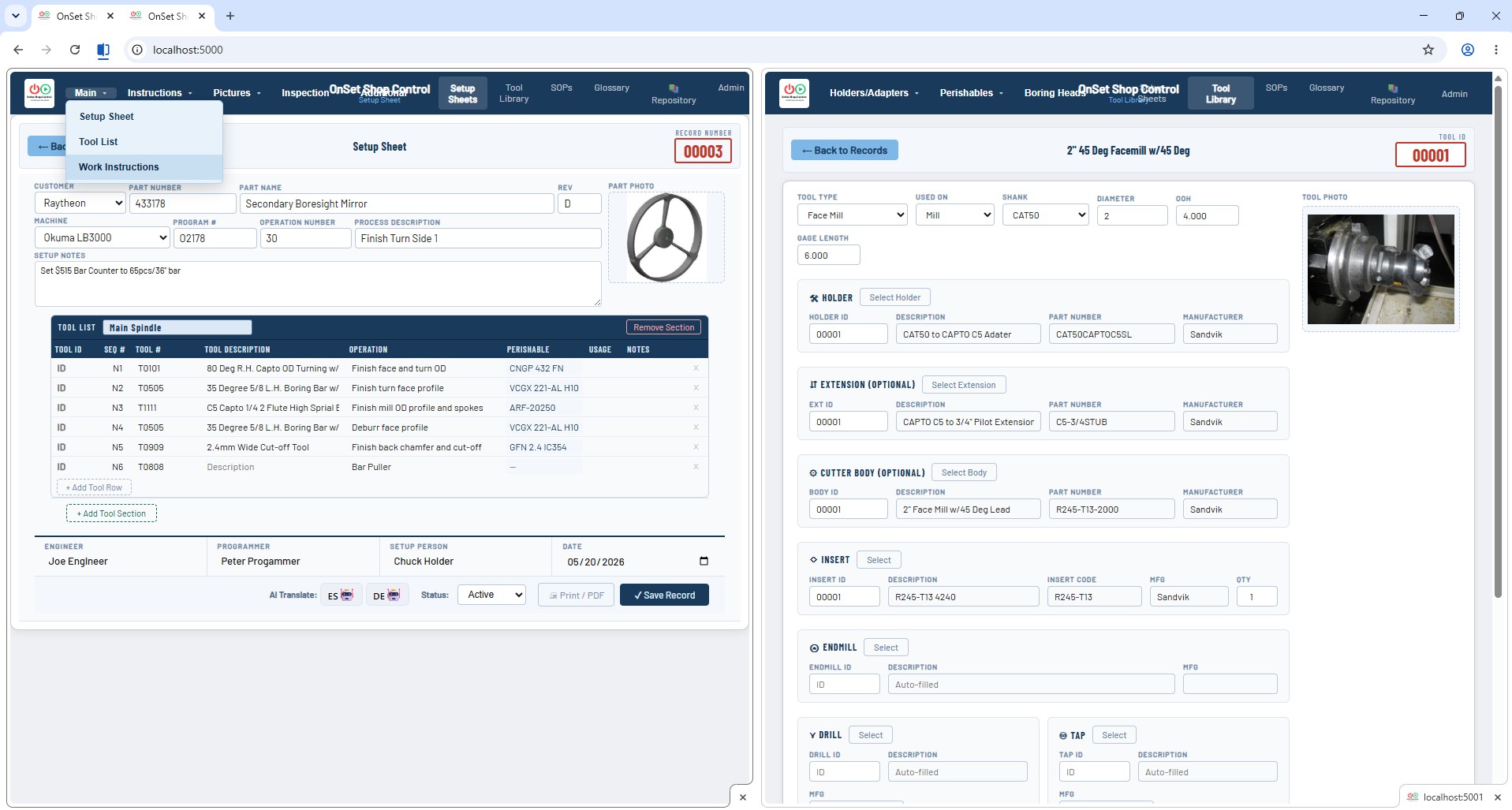
Setup Sheet & Tool Library — Side by Side
When launched, the Setup Sheet and Tool Library run simultaneously on separate ports. Use Chrome's split screen option and both apps run side by side in a single browser window — enter a Tool ID on the Setup Sheet and the Tool Library is right there to reference or update. The unified nav bar across all modules means you can jump to SOPs, Glossary, or the Repository without opening a new window. All apps share the same local network with no internet required.
Setup SheetTool Library
Split ScreenUnified Nav Bar
Screenshot 02
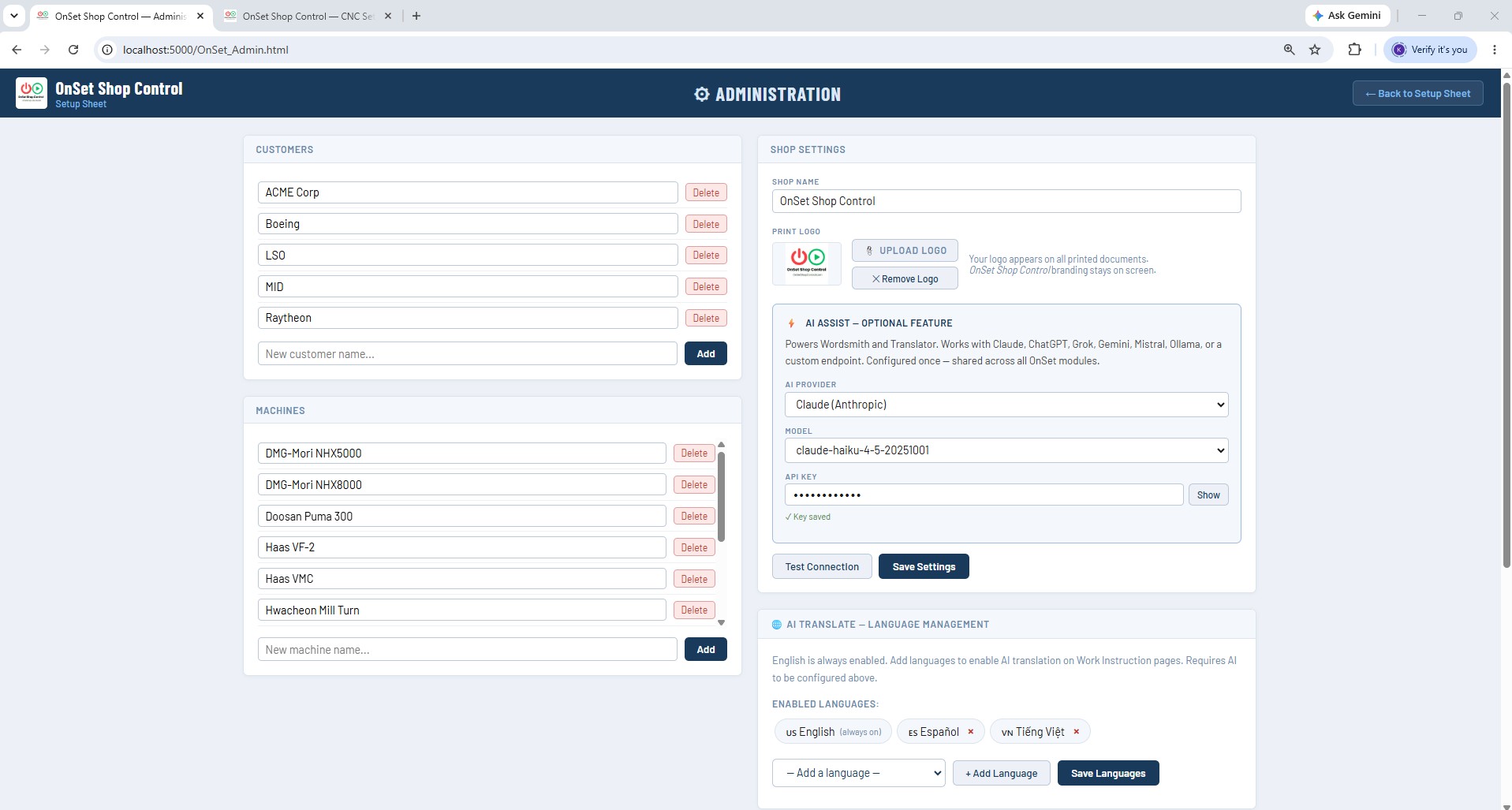
Setup Sheet Administration
Manage your Shop Name, AI Provider settings, and Language translation options from one clean interface. Maintain the pull-down menu lists for Customers and Machines that populate throughout the system — keeping your Setup Sheet records consistent and your data clean.
Shop SettingsAI Provider
LanguagesCustomers & Machines
Screenshot 03
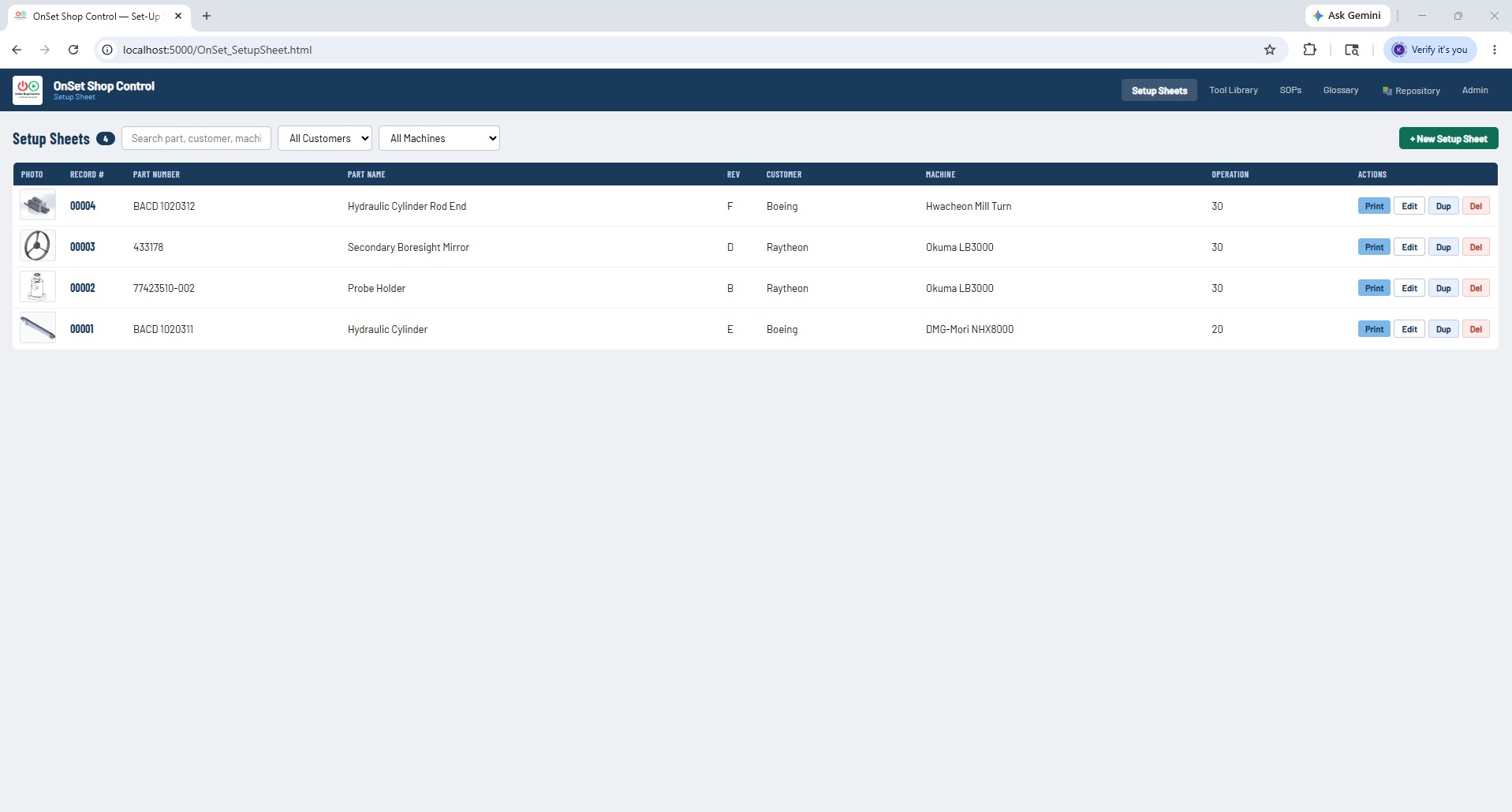
Setup Sheet Records List
Every setup at a glance — part photo thumbnails, record number, part number, part name, revision, customer, machine, and operation. Search by part, customer, or machine, or filter by customer and machine drop-downs. One click opens any record for editing. Per-row Edit, Print, Duplicate, and Delete actions keep the workflow fast. New Record starts a fresh form instantly.
Records BrowserPart Photo Thumbnail
Search & FilterQuick Actions
Screenshot 04
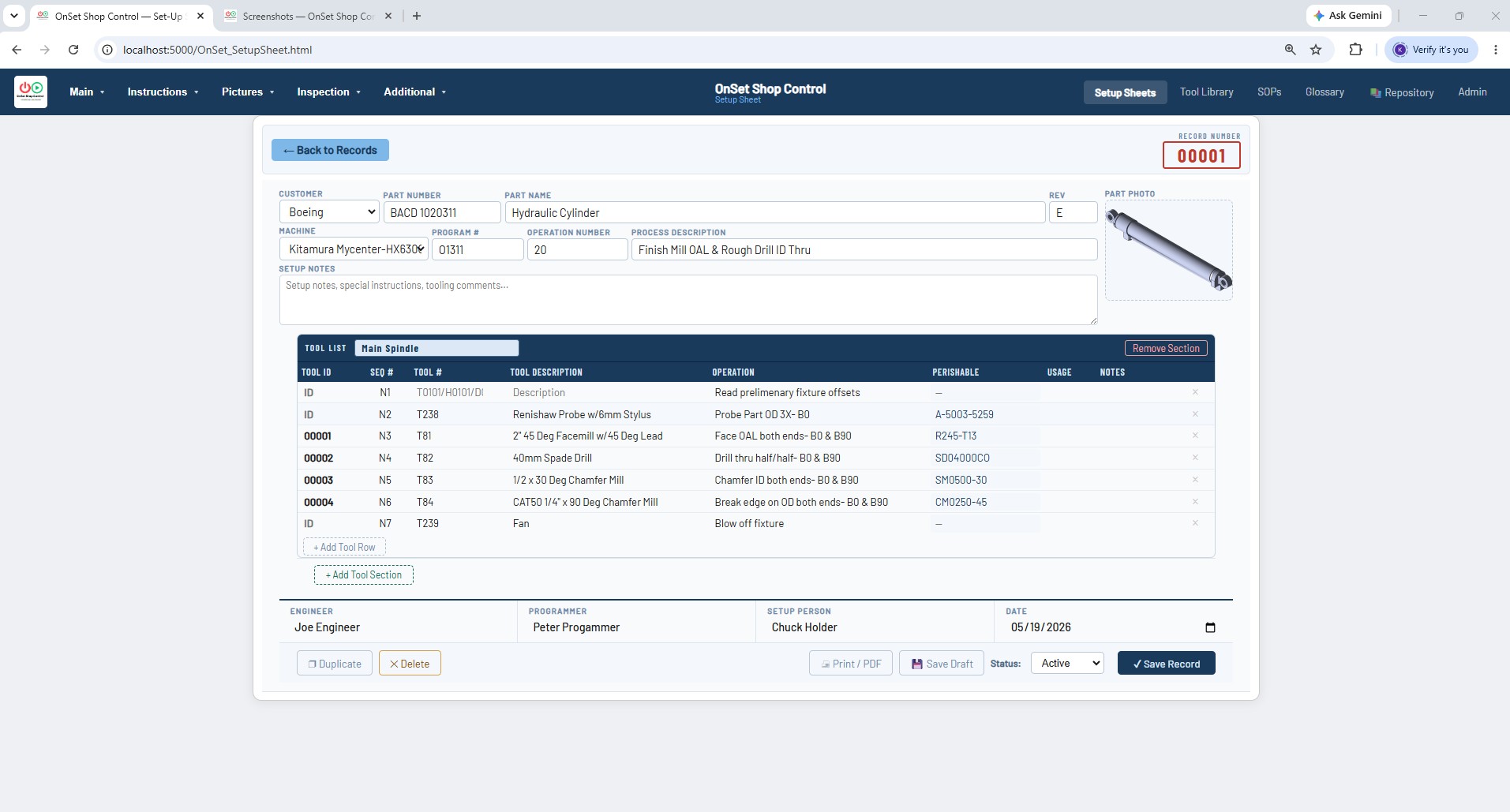
The Setup Sheet Record
The complete Setup Sheet record — header fields, part photo, Tool Crib Build List with up to 4 tool sections, and sub-page navigation tabs across the bottom. Built by machinists, for machinists — powered by AI. Tab-out on a Tool ID auto-fills holder, extension, perishable P/N, and OOH from the Tool Library. The Programmer Footer locks in Engineer, Programmer, Setup Person, and Date on every printed page.
Header FieldsTool Crib Build List
Part PhotoSub-Page Navigation
Screenshot 05
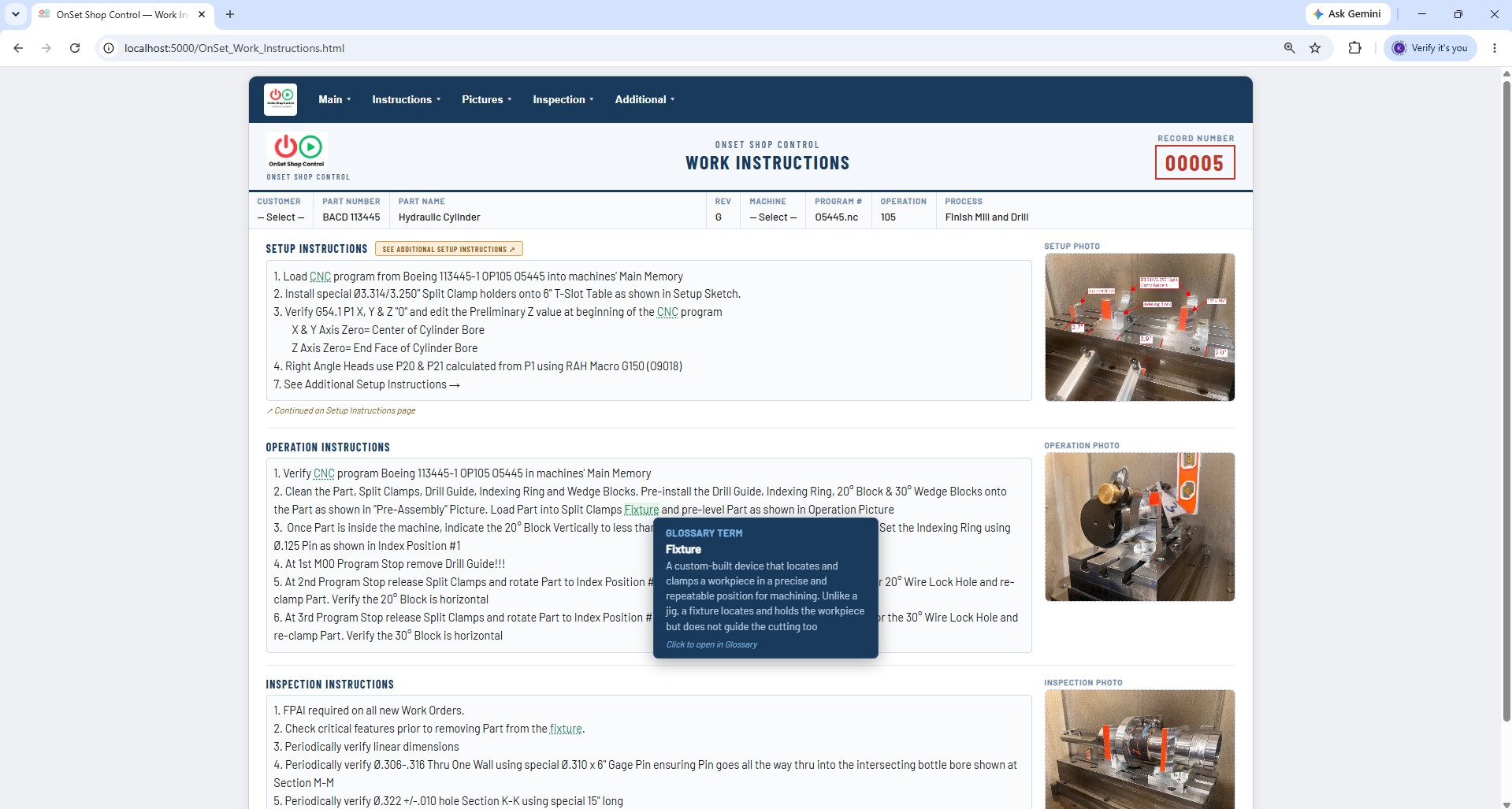
Live SOP & Glossary Rollovers in Work Instructions
SOP and Glossary term hyperlinks embedded in Work Instructions are active on screen — hover over any linked procedure or term and the full SOP or definition surfaces in a floating panel without leaving the page. Click the link and navigate directly to the SOP or Glossary term. The operator gets the detail they need right at the point of instruction, exactly when they need it.
Live RolloversSOP Links
Glossary LinksWork Instructions
Screenshot 06
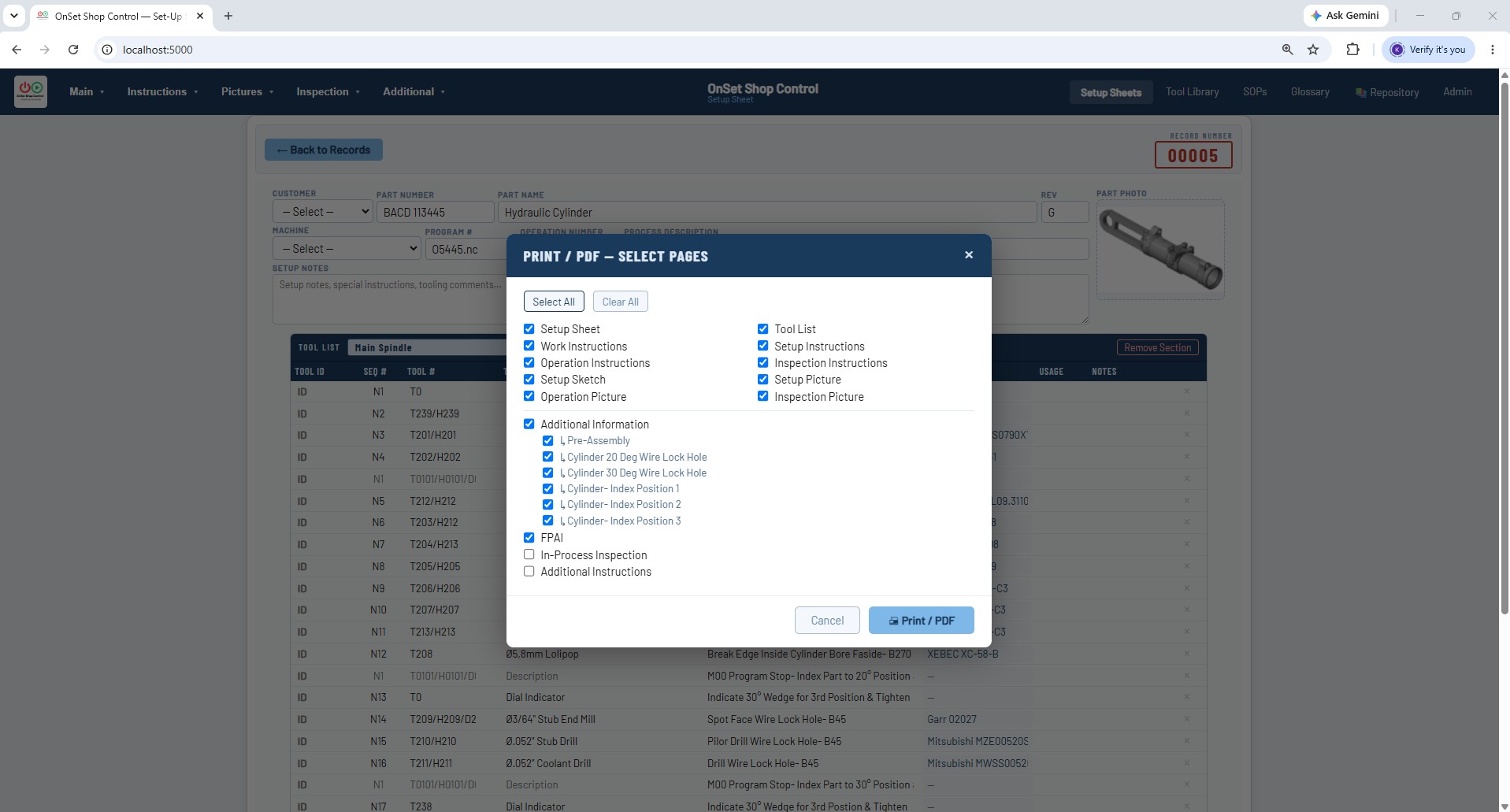
Print / PDF Page Selector
Choose exactly which pages to include in your output package — select the full record or just the pages a specific operator needs. The preview opens in a new tab with live SOP and Glossary term rollovers active — hover any highlighted term for its definition, click to open the full SOP or Glossary entry. When you're ready, click Print / Save PDF to generate the final clean document.
Print ModalPage Selection
PDF OutputLive Rollovers
Screenshot 07
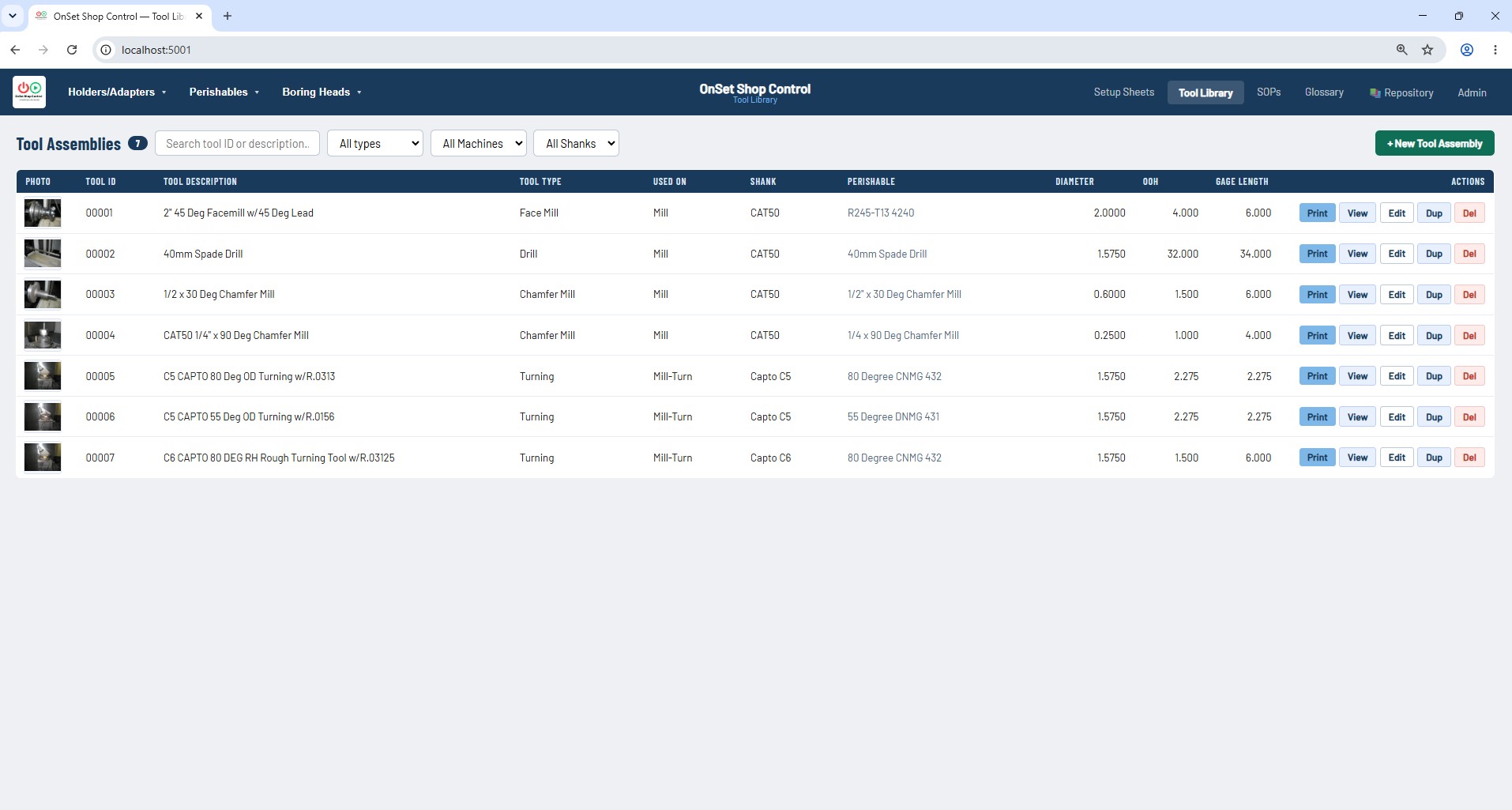
Tool Library Records List
Every tool assembly catalogued with photos, holder specs, cutter details, and OOH. Search by Tool ID, description, manufacturer, or type. The sidebar organizes your tool inventory by the 11 component sub-libraries — Holders, Extensions, Cutter Bodies, Inserts, Endmills, Drills, Taps, Mill Cutters, Boring Heads, Boring Slides, and Boring Cartridges.
Tool Assemblies11 Sub-Libraries
Search & FilterTool Photos
Screenshot 08
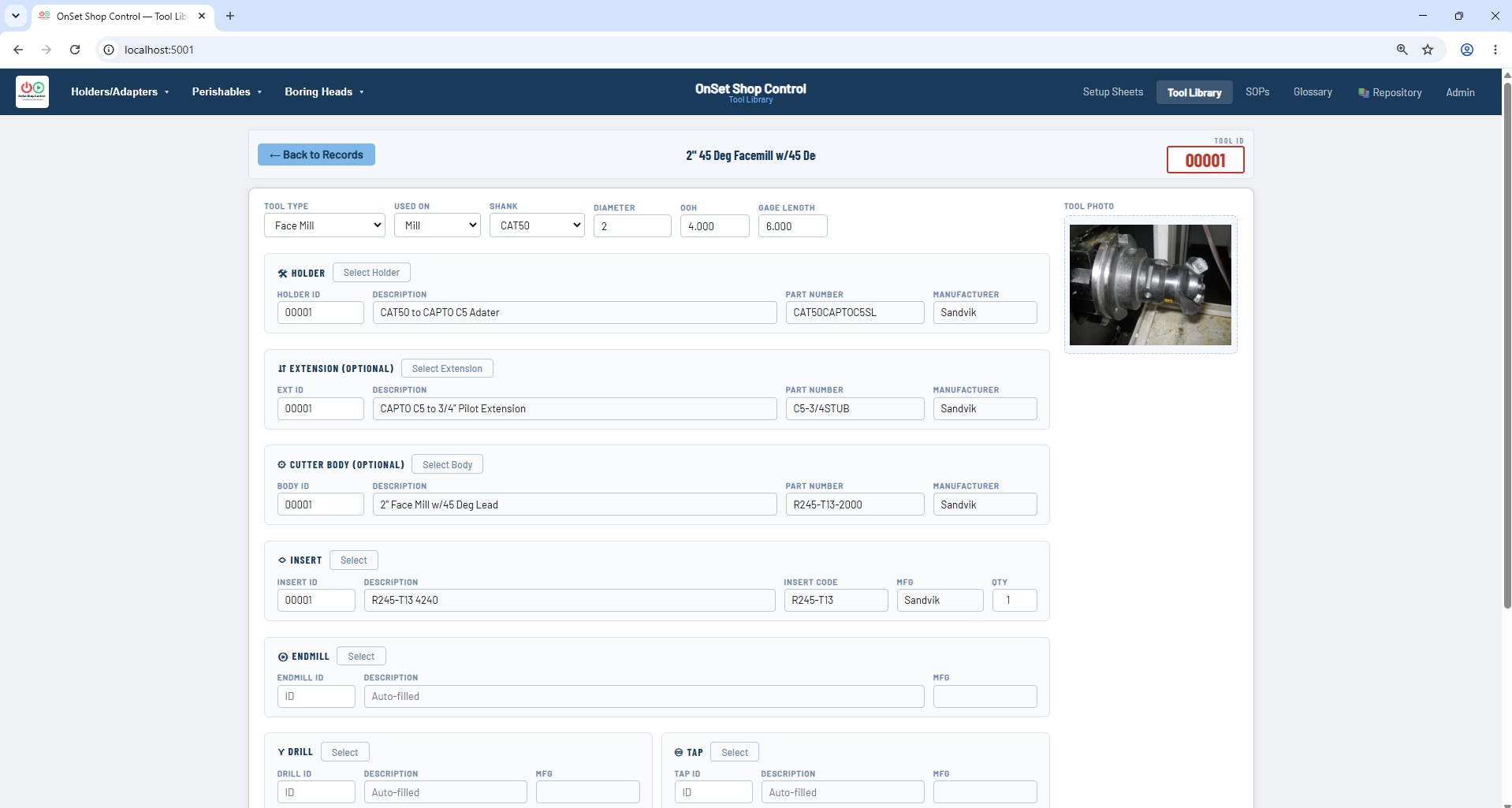
Tool Library Assembly Record
Full tool stack documentation for a complete tool assembly — OOH, holder, extension, cutter body, perishable part numbers, and notes that make up the assembly from spindle to cutting edge. Tool photo, manufacturer, and component specifications all in one record. Print generates a professional landscape Tool Assembly sheet.
Tool AssemblyOOH
Component StackAssembly Print
Screenshot 09
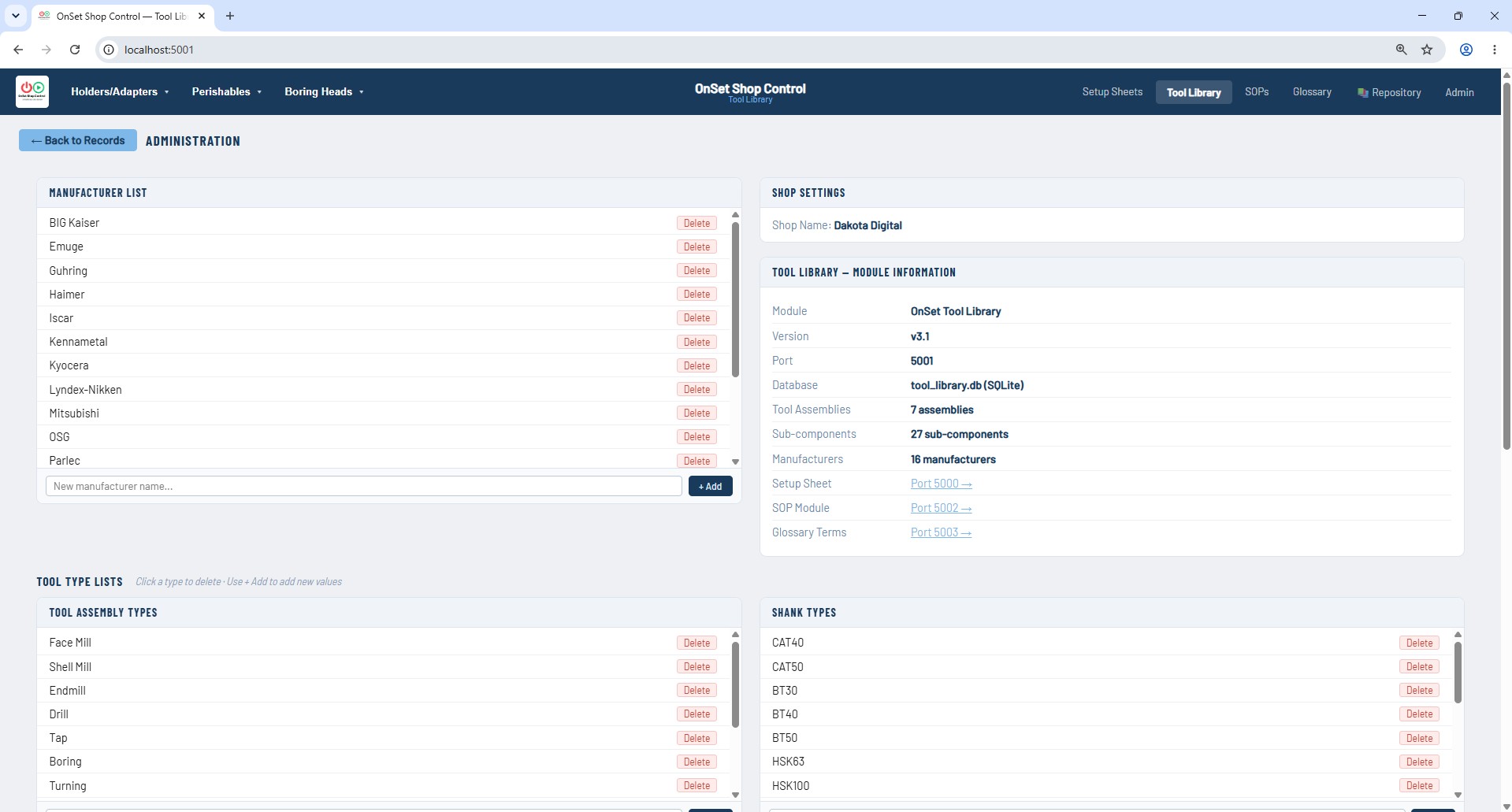
Manufacturer Management
Maintain your approved vendor list for tool holders, cutting tools, and accessories directly within the Tool Library. Manufacturer records link to your tool assemblies so every component traces back to its source — useful for tooling audits, procurement, and standardizing your approved tooling list across the shop.
ManufacturersVendor List
Tooling AuditProcurement
Screenshot 10
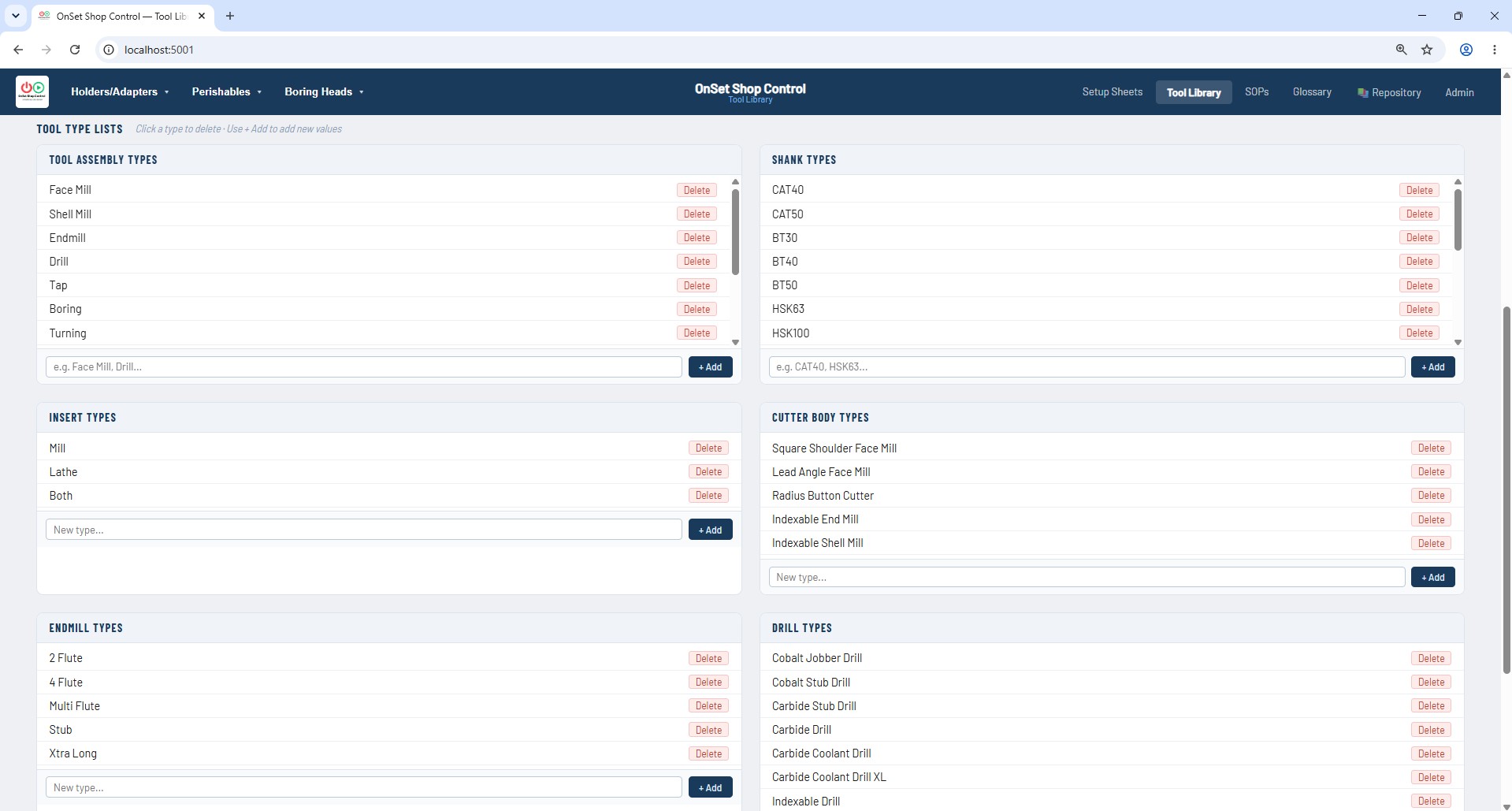
Tool Type Categories
Organize your tool library by the many different tool types so programmers and setup techs can find the right tool fast. Custom tool types let you classify your inventory the way your shop actually works — face mills, boring bars, thread mills, form tools, specials, and whatever else your shop runs.
Tool TypesCategories
Custom ClassificationFast Lookup
Screenshot 11
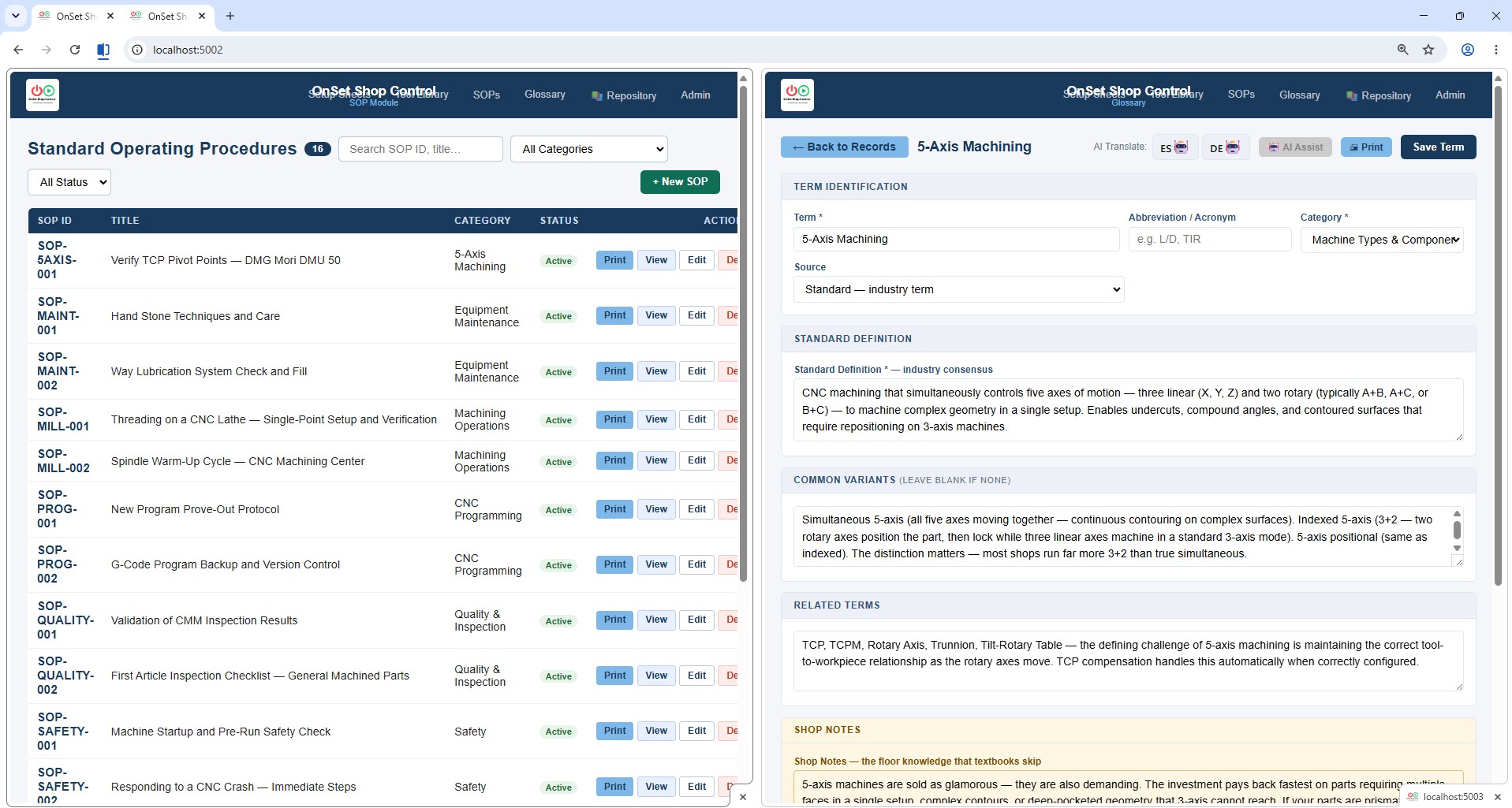
SOP Module & Glossary — Side by Side
The SOP Module and Glossary run simultaneously and complement each other naturally. Cross-reference machining terminology while authoring your standard operating procedures — write a step, verify the term definition, keep going. The unified nav bar makes switching between modules seamless without losing your place.
SOP ModuleGlossary
Split ScreenCross-Reference
Screenshot 12
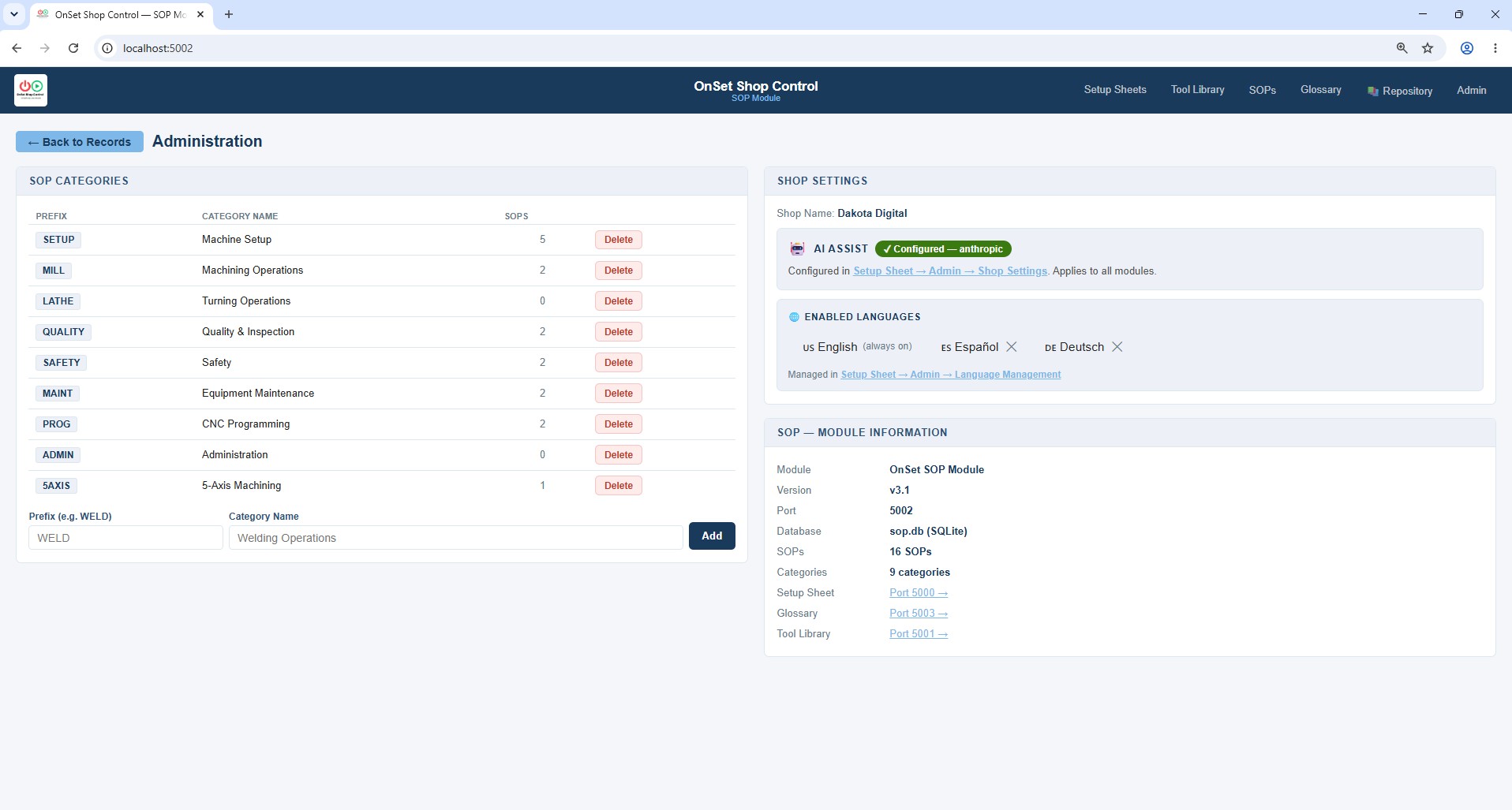
SOP Administration
Manage SOP categories, AI translation settings, and enabled language options from one place. Configure which languages your shop supports for translated SOPs — Spanish, Vietnamese, German, and more. Document control settings let you define approval workflows and revision conventions that match your existing QMS.
SOP CategoriesAI Translation
LanguagesDocument Control
Screenshot 13
SOP Records List
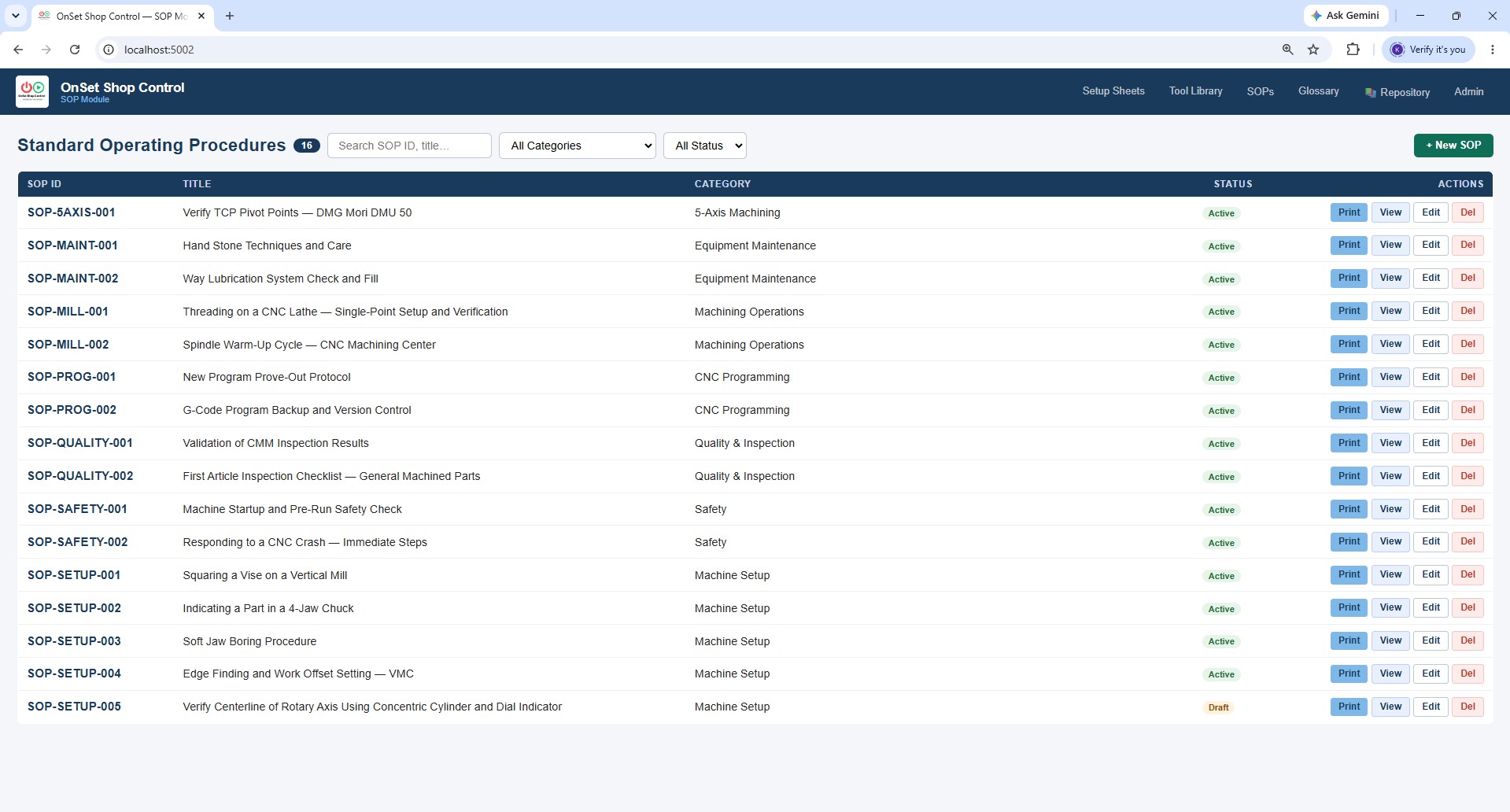
All your standard operating procedures organized by category with status badges and translation indicators. Filter by category, status, or language to find any SOP instantly. Active, Draft, and Archived status keeps your controlled document list clean. Translation chips show at a glance which SOPs have been translated and whether the translation is current.
SOP DirectoryStatus Badges
Category FilterTranslation Status
Screenshot 14
The SOP Record
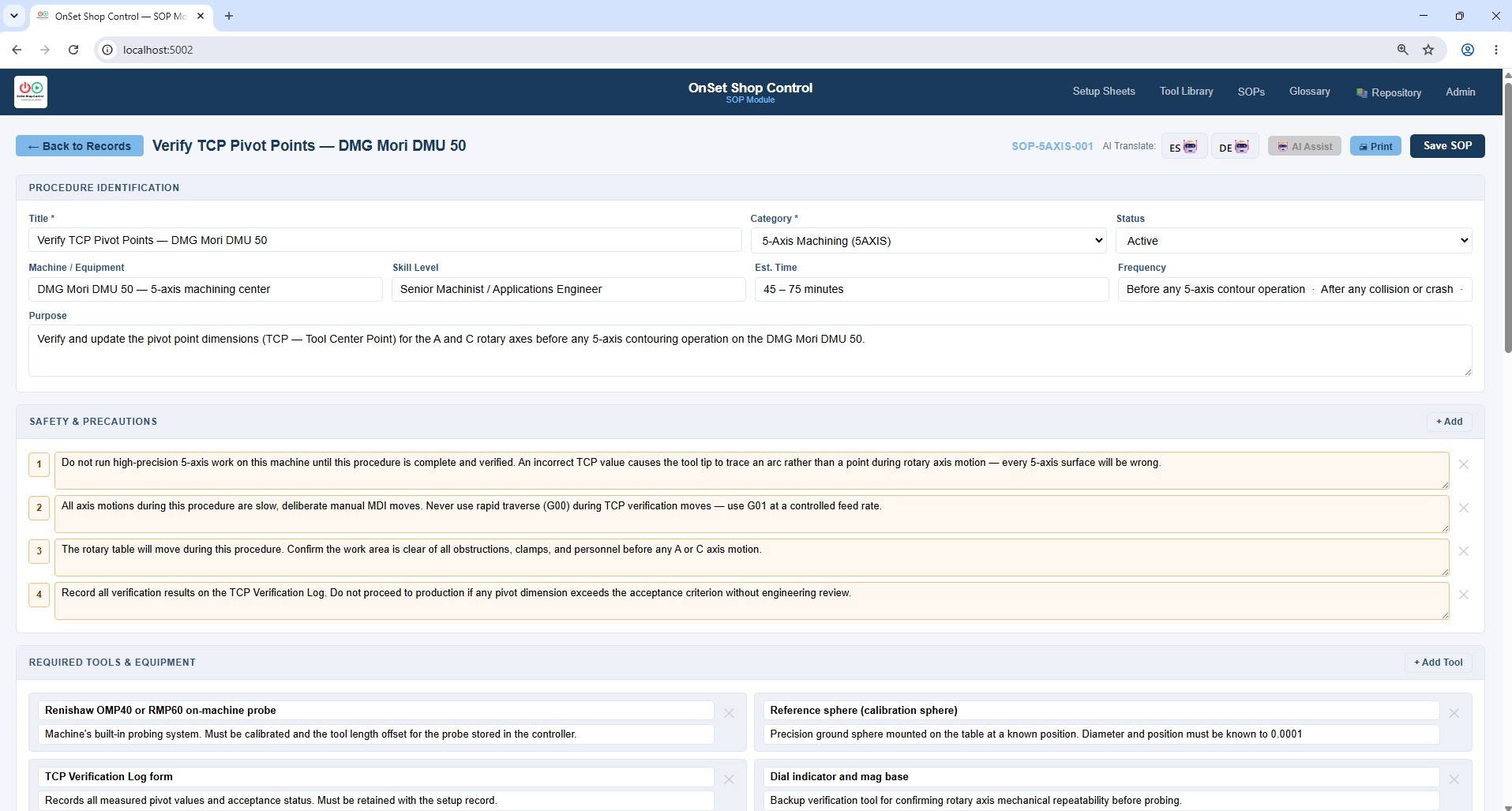
A complete Standard Operating Procedure — purpose, safety items, required tooling, step-by-step procedure with verify fields, and approval signatures. AI-assisted authoring generates a complete draft from a brief description. AI translation delivers the SOP in your enabled languages with a single click, flagging the translation as current or stale whenever the source SOP is updated.
SOP StepsSafety Items
AI AuthoringAI Translation
Screenshot 15
Live Glossary Term Rollovers in SOP View
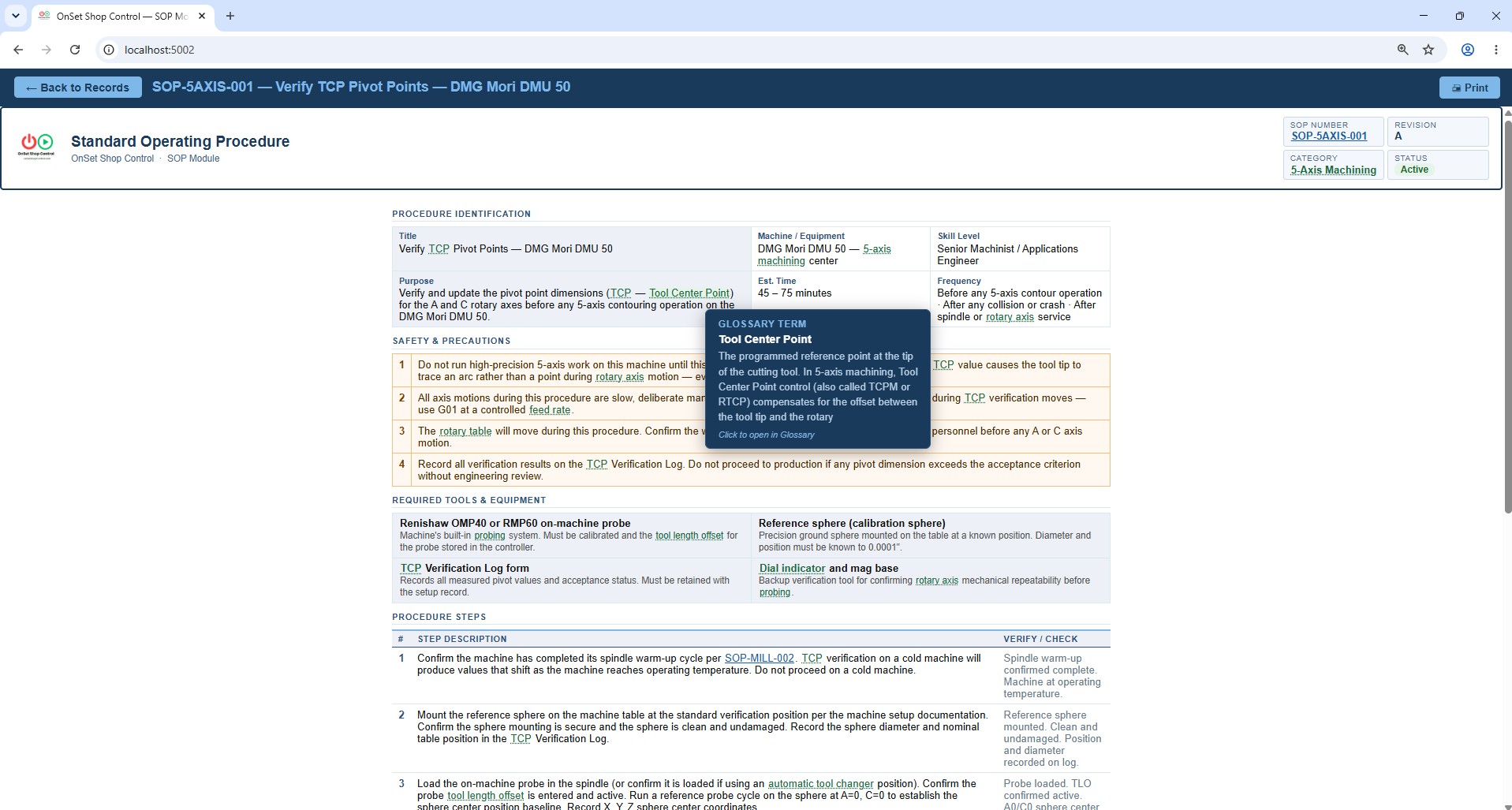
Hovering over a Glossary term inside a live SOP displays a navy tooltip showing the term category, full definition, and a click-to-open link — navigating directly to the complete Glossary entry without leaving the SOP. The same live rollover system works in the Setup Sheet instruction pages and across all print preview pages. Matching terms are highlighted automatically — no markup required. Click opens the term in an overlay panel right on the page. Press Esc or click ← Back to return to the document. The knowledge is connected.
Live RolloversGlossary Hyperlinks
TooltipConnected Knowledge
Screenshot 16
Glossary Records List
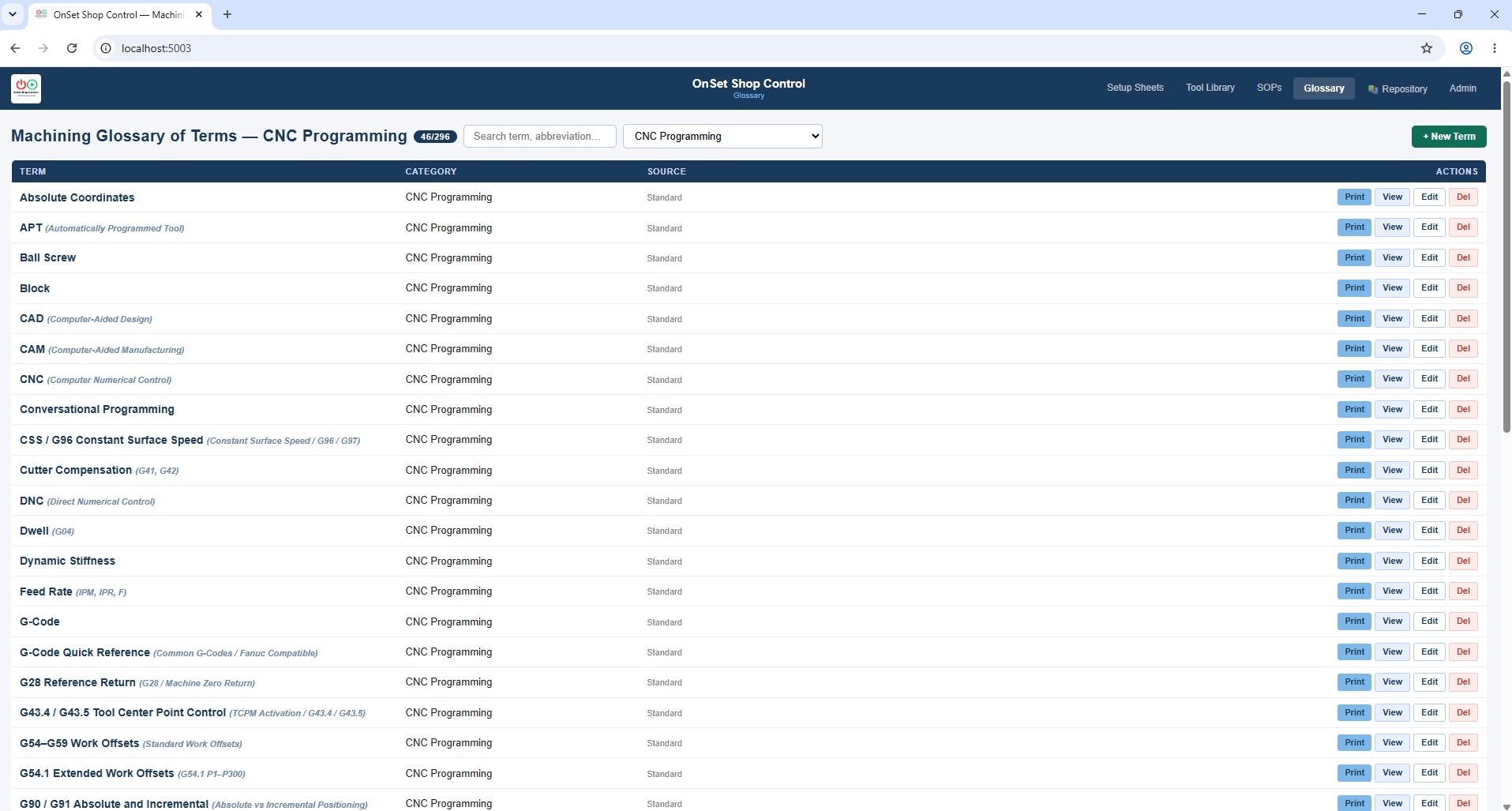
Your complete shop terminology library organized by category — GD&T, CNC Programming, Tooling, Machine Components, Cutting Operations, and more. Shop-specific terms sit alongside industry-standard definitions. Filter by category or search by term. Translation indicators show which terms have been translated for your multilingual team.
Term DirectoryCategories
Shop TermsIndustry Standards
Screenshot 17
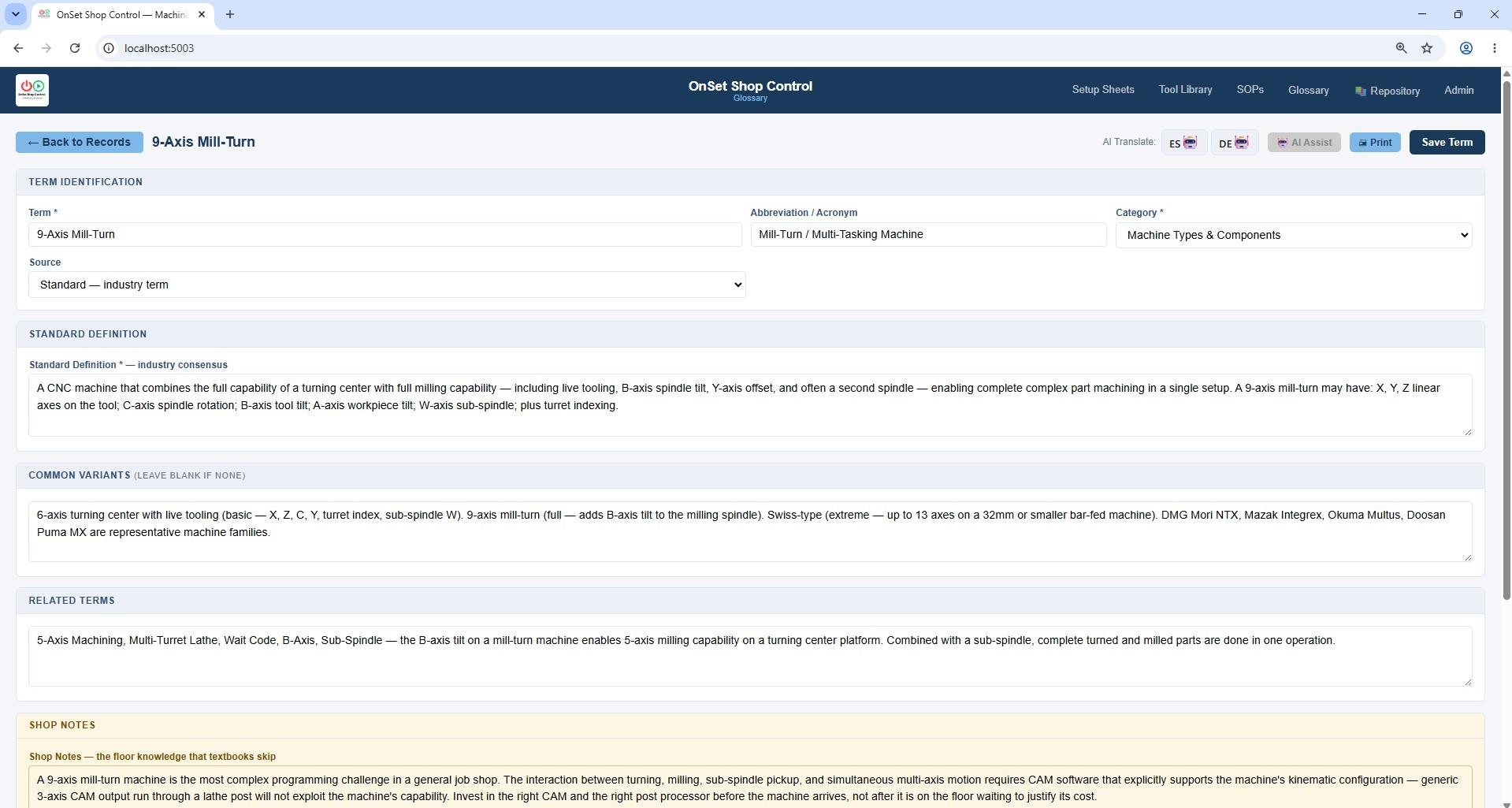
Glossary Term Record
A complete Glossary term record — standard definition, shop-specific notes, abbreviation, origin, and cross-references. Terms are translatable into multiple languages so your multilingual team reads the definition in their own language while learning the English term used on the shop floor. Shop terms are clearly distinguished from industry-standard definitions.
DefinitionShop Notes
AbbreviationMulti-Language
Screenshot 18
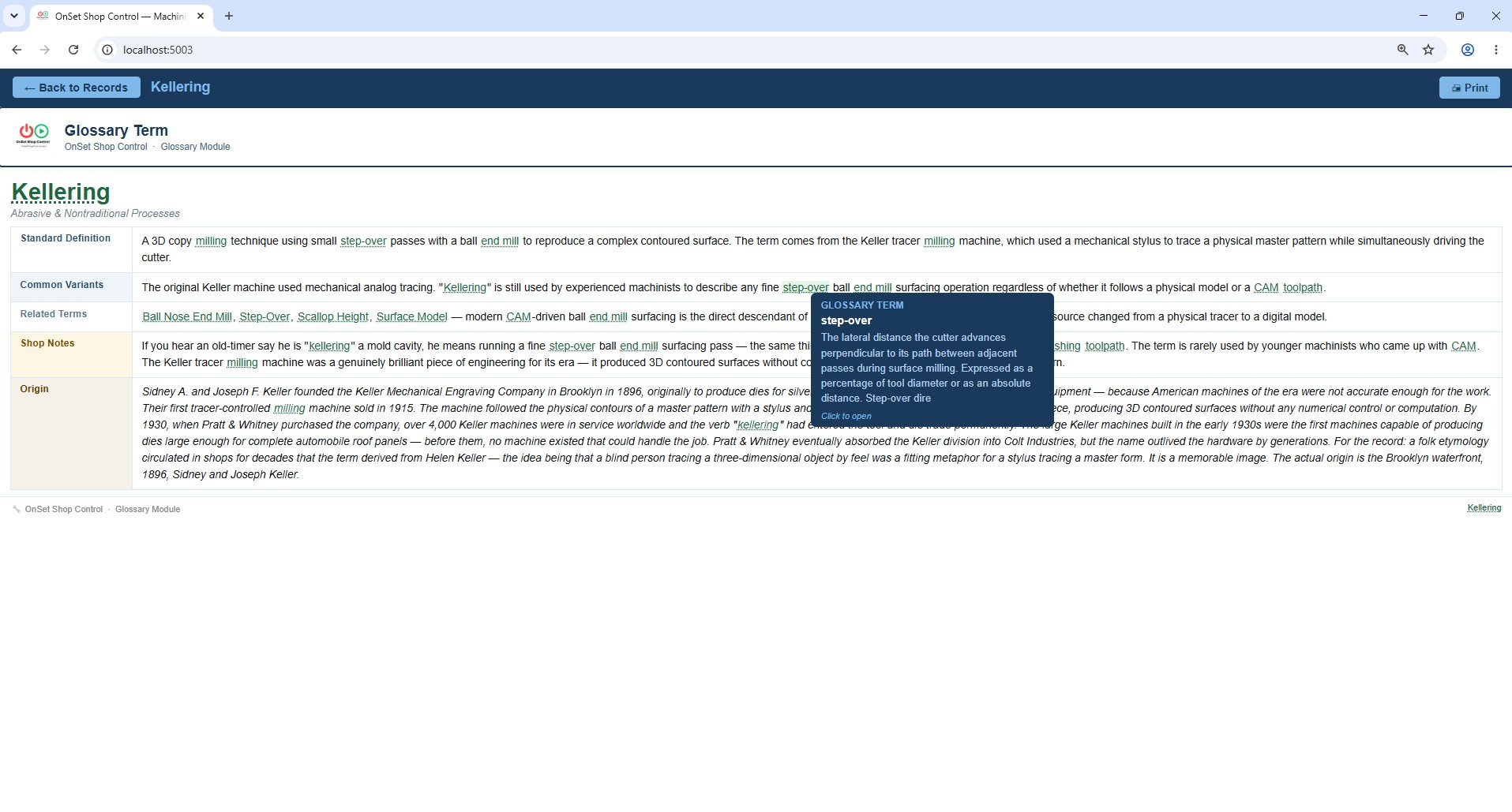
Live Glossary Term Rollovers
Glossary term rollovers aren’t limited to SOPs — they’re active across the entire system. Hover over any highlighted term in the Glossary module and the definition, abbreviation, and shop notes surface instantly in a floating panel. No navigation, no page load — the knowledge is right there where the reader needs it.
Live RolloversGlossary Module
Instant LookupNo Navigation
Screenshot 19
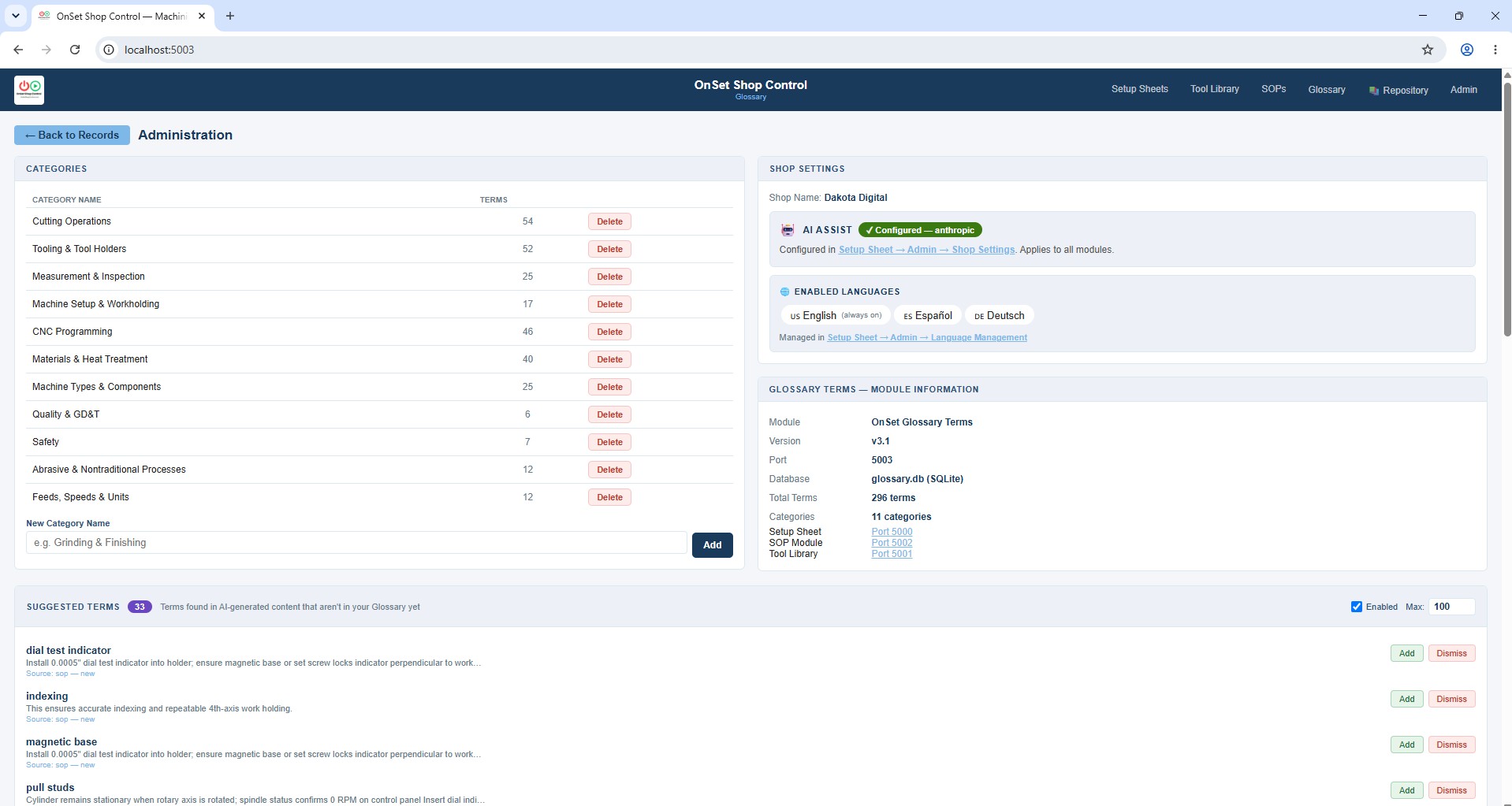
Glossary Administration — AI Suggested Terms
OnSet reviews your Setup Sheets, SOPs, and existing Glossary to build a list of terms your programmers and machinists use daily that aren't yet in the Glossary. Review the suggested terms and choose to add them or dismiss them. The Glossary database essentially builds itself — capturing the real language your shop uses on the floor and turning it into a searchable, translatable knowledge base.
AI Suggested TermsAuto-Discovery
Shop LanguageKnowledge Base
Screenshot 20
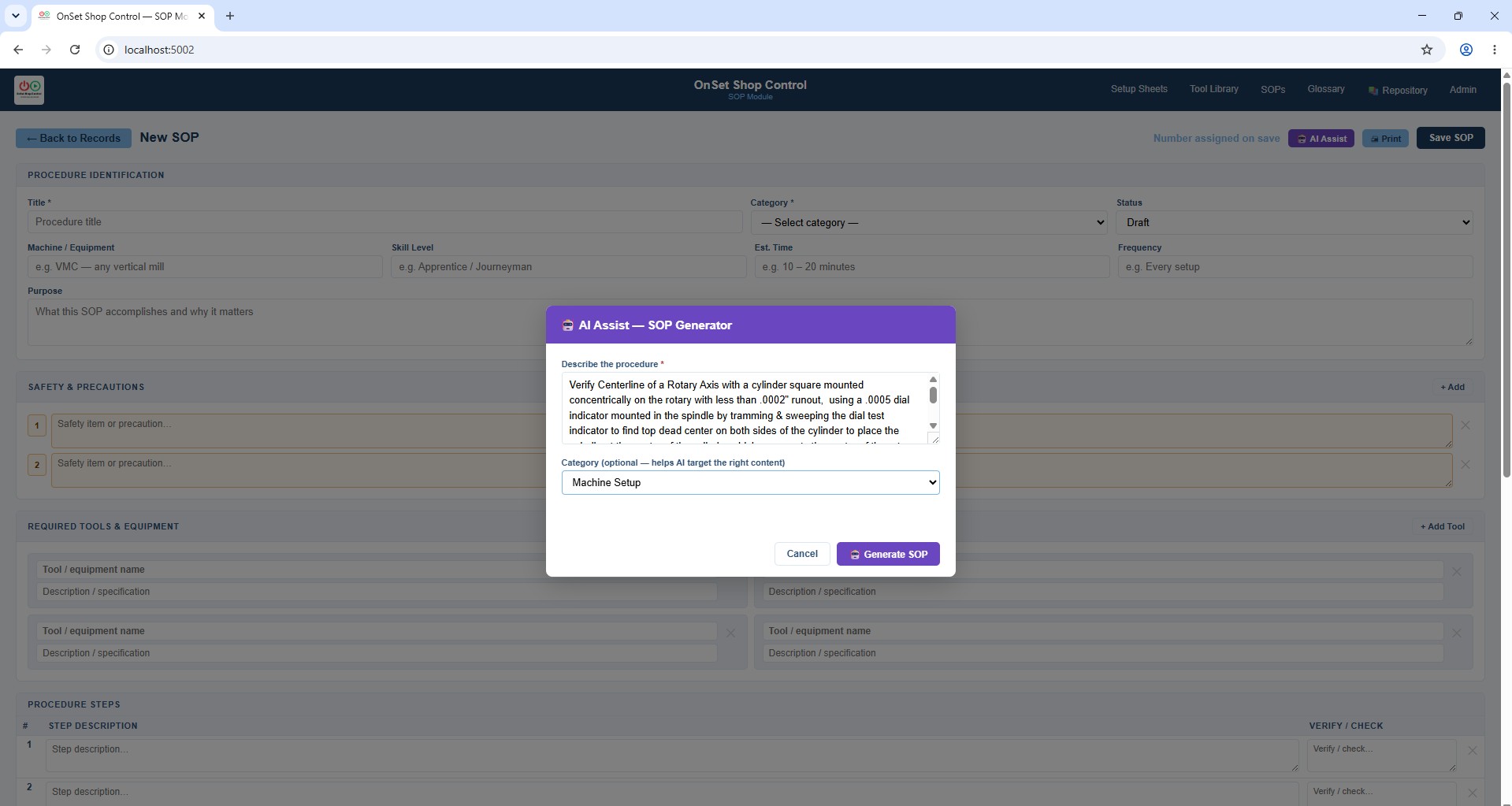
AI Assist — SOP Generation
Describe the operation in plain language and AI Assist generates a complete Standard Operating Procedure — purpose, safety items, required tooling, step-by-step procedure with verify fields, and approval fields. Review, edit, and refine before setting the SOP to Active. Every AI-generated SOP includes a disclaimer making clear it was AI-assisted and must be validated by a qualified person before use. The AI accelerates authoring — the machinist stays in control.
AI GenerationSOP Authoring
Review & EditAI Disclaimer
Screenshot 21
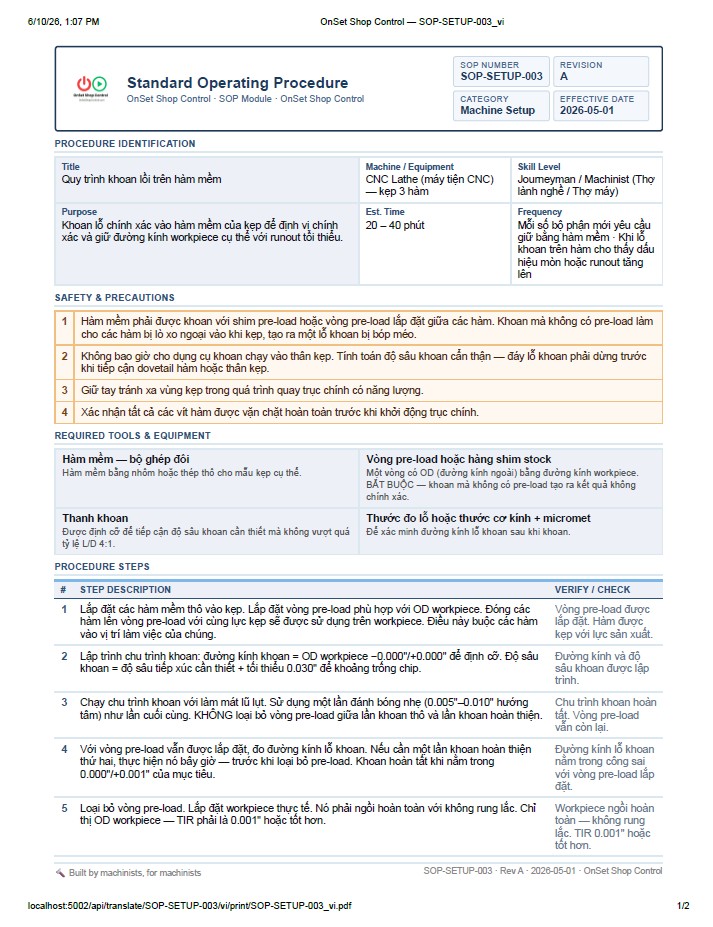
AI Translation — Vietnamese
AI-translated print-ready SOP output in Vietnamese. Full professional layout with OnSet header, AI Translation banner, SOP number, revision, category, and effective date. All sections translated in context — title, purpose, safety precautions, required tools, procedure steps, and verify/check column. Not word-for-word translation — OnSet translates tasks in real shop context, preserving the meaning that matters on the shop floor. Print filename pre-filled as SOP-SETUP-003_vi.pdf. A Reference Only disclaimer is included on every translated document.
AI TranslationVietnamese
Print ReadyShop Context
Screenshot 22
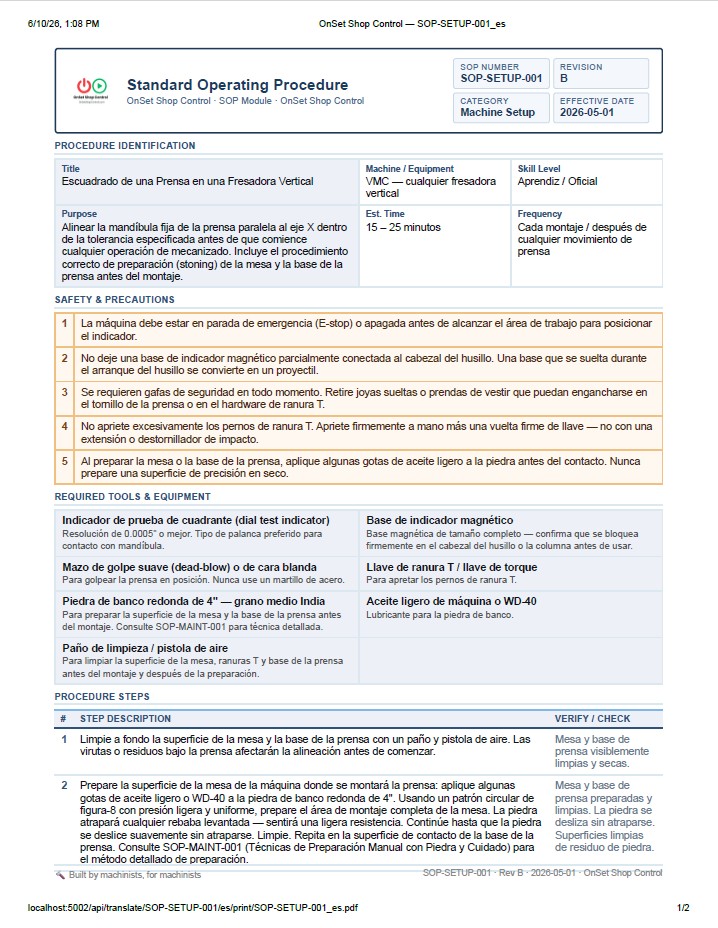
AI Translation — Spanish
Print-ready SOP output in Spanish. The Squaring a Vise procedure fully translated — all field labels, safety items, tool descriptions, step-by-step instructions, and verification criteria. Professional layout identical to the English original. Translations can be edited for regional dialect, adapted for a specific shop's terminology, and carried forward when an operation moves facilities. SOP-SETUP-001_es.pdf.
AI TranslationSpanish
Print ReadyRegional Dialect
Screenshot 23
AI Wordsmith — Work Instructions
OnSet’s AI Wordsmith takes the shorthand a programmer types into Work Instructions — “face mill top .010 leave for grind” — and refines it into clear, professional, imperative-voice instructions without changing a single technical detail. SOPs embedded directly in Work Instructions become live hyperlinks — one click navigates the operator from the instruction to the full Standard Operating Procedure and back. The knowledge is connected. The documentation speaks the language of the people running the machines.
AI WordsmithWork Instructions
SOP LinksProfessional Output